Guides for the member dashboard and client portal: tools, troubleshooting, and safety. Use Quick navigation below to jump to a topic, or browse sections in order.
Your dashboard is your home base for personal growth. It includes:
Use the theme control (sun/moon icon) in the top bar—before the help and notification icons—to switch light and dark on the dashboard. Your choice is remembered for that browser. Some tools (for example Bible study or AI chat) may also show a theme control in that page's header.

Not sure which feature to use? The Find your tool wizard helps you choose the right feature by time (short term: right now; mid term: this week; long term: ongoing) and what you need (e.g. process a conversation, plan a message, track progress, safety check, study or pray, work on your relationship). Open it from the dashboard Quick Access (compass icon) or go to Dashboard → Find your tool.
On most dashboard pages you can also open the header search with Ctrl+K or Cmd+K (Windows/Linux vs Mac). When you are not typing in a field, / does the same. Try everyday words (for example billing, schema, safety)—not just page titles. Universal AI Chat, legacy dashboard chat, and full Practice Management keep their own shortcuts for Cmd/Ctrl+K.
Add ?practice= with your provider's public booking slug (same as their scheduling link). Example: /contact?practice=demo.
You can also use the contact section on the practice's public site at /p/…#contact (use their site slug in place of the middle segment—the same value as in ?practice=).
Open the contact page without a slug to see these instructions there as well.
These paths are for patients and visitors working with a provider practice—not the full member dashboard.
/p/your-slug — marketing-style page; fonts and colors follow the provider's site template. Section order (hero, tools, about, services, optional FAQ, contact) is set in Dashboard → Practice → Practice Site → Page layout. When the provider enables FAQ, use /p/your-slug#faq for scheduling- and privacy-focused Q&A (same themes as on the booking page)./book/your-slug — same template styling as the public site; FAQ accordion at #faq.Providers and staff use Dashboard → Practice for clients, appointments, telehealth, and configuration. A static design showcase may be available at /design/reflect-design-system-showcase.html on some deployments (stakeholder / QA reference—not a patient workflow).
Developer-facing parity notes: docs/practice/REFLECT_DESIGN_SYSTEM_PORTAL_SCOPE.md.
The product offers tiers from free core growth features through paid plans that unlock more tools (for example couples features, Bible study, and enhanced AI where your plan allows). All plans include secure storage and the ability to export your data.
When you are signed in, your current subscription tier appears on the dashboard Your Plan card and on the Pricing page.
To upgrade or downgrade, click Request plan change on the dashboard plan card or on the Pricing page (next to your current plan). Choose the plan you want, add an optional reason, and submit. An administrator processes the request and you are notified when it is complete.
Major cards are accepted; processing is handled by a secure payment provider (for example Stripe). Card details are not stored on Emily's servers.
Goals help you track your personal growth journey. You can create goals in different categories like empathy, communication, boundaries, and more. The same overview appears when you open contextual help (?) on Goals.

The chat feature provides an AI-powered assistant that helps you explore your thoughts, understand your impact on others, and get personalized guidance.

Journal (Dashboard → Journal) is your one place for writing: a unified timeline of freeform entries (blank page, morning/evening, gratitude) and guided reflections. You can create custom templates (Manage templates) with your own name and prompt; they appear as quick-action buttons. Export your timeline to Markdown or HTML (Export (.md) / Export (HTML)) for backup or printing. Add mood to entries and build a journal streak. Reflections are prompt-driven entries with AI-generated insights and optional Bible verse linking; they also appear in your Journal timeline.
Reflections are structured entries where you document your thoughts, experiences, and insights from your growth journey.

Progress tracking shows you visual charts and statistics about your growth journey over time.

Daily check-ins help you track your mood, energy, and intentions each day, building consistency in your growth journey.

For more detail, see the Help Center sections above or the Bible Study page on your dashboard.

Evidence-based exercises for self-awareness, emotion regulation, and relationship skills. This is a personal growth tool—not therapy or mental health treatment. For professional care, see When to Seek Help.
Hub (Dashboard → Therapeutic):One page with a "Reflective conversation" section (Therapeutic Chat) and an "Exercises" section (Schema Work, Empathy Training, Affect Labeling, plus DBT skills: TIPP, STOP, DEAR MAN). When you have progress, you see a short summary (exercises completed, stage, learning pace, suggested next). Use "View full progress dashboard" for detailed markers. From Chat or any exercise, use "Back to therapeutic hub" to return.
Therapeutic Chat: Reflective conversation with pattern awareness; patterns are tracked for your progress. Same safety and crisis screening as the rest of the platform.
Progress: Summary (sessions, exercises completed, stage, days), learning pace and defense trends, circuit targets, and suggested next exercises. Each exercise has multiple steps; use Back/Next and click Complete on the last step. Difficulty adapts to your performance.

From Dashboard → Therapeutic → Structured schema assessment (or Schema program in the schema hub), open the YSQ-R flow: complete the questionnaire (autosave), then use Schema profile for domain charts, longitudinal summaries when you have multiple completions, mode theory reference diagrams (dimensional two-leg model and coordinate mode map) with YSQ-R–derived mode instrument scores mapped onto the template when a profile is loaded, an interactive mode map with optional trigger notes, plus a Schema self-help path card (mode check, regulation, need framing, repair action, saved weekly checklist, and completion trend across assessments)—and Clinical report for the same reference diagrams plus a print-friendly layout and Download PDF options. On phones and narrow windows, primary actions stack and wide charts scroll horizontally so nothing is clipped.
Mode theory wording: Schema profile uses member-oriented language (e.g. your run and the interactive mode map). Clinical report and PDF chart capture use clinical-record framing for the same figures—this assessment / this completion, formulation, supervision, and clinical judgment (not a substitute for interview).
Practice workspace: When your organization includes client YSQ-R, open the same style report from the client chart (YSQ-R list → report for a specific completion). Item wording is protected by copyright; the app uses item codes unless your deployment supplies licensed text in the instrument spec. Chart flags use a workbook-style rule (a subscale is flagged when a large share of its items are rated 5–6); other numbers on the profile support reflection and remain self-report, not a clinical assessment. If no subscale meets that workbook flag, you may see a short note inviting conversation about medium endorsements. This is psychoeducation and self-reflection—not diagnosis or treatment.
Sharing your schema profile: On Schema profile you can create a timed public link and use Email link to send that link directly to someone—no confirmation email to your own inbox first. You can still copy the link manually. (Safety Check and relationship practice profile sharing still confirm to your email first.)
Partner compare link: With an active couples connection and a completed YSQ-R for both of you, Schema profile offers Partner compare link: a time-limited public URL with side-by-side charts. Names on the page default from each account (or you can type how you want to appear). You can list active compare links, copy, revoke, raise max opens, or extend expiry from the same area. Viewers see open counts and expiry on the page (no separate email verification step for this link type).
Official YSQ-3 long/short forms and other schema inventories are copyrighted by the Schema Therapy Institute and sold through their order center. Theory and inventory overview: Schema Therapy Institute. This portal uses a Rasch YSQ-R style implementation for self-reflection—not those licensed forms.
No login: /learn (overview), /learn/how-schemas-work (why you react), /learn/coping-modes (what mode am I in?), /learn/two-leg-model (two-leg model reference), and /onboarding/your-patterns (orientation before viewing results). Plain-language background — not diagnosis or treatment.
When signed in, open Dashboard → Therapeutic → Schema program → Schema therapy tools (bookmark /tools still works; it redirects to the same hub). The hub complements YSQ-R; it does not replace the questionnaire, profile charts, or clinical report.
source_tier (A/B/C) and source_refs (source URLs or doc paths).Toolkit shares use /share/mode-profile/… and /share/couple-cycle/…. Same limits as the rest of the schema program: psychoeducation and self-reflection—not diagnosis or treatment.
Crisis and professional support: If you are in immediate danger, contact local emergency services. For crisis-oriented resources in the app, open Crisis resources. For when to seek licensed care, see When to Seek Help. Imagery and other high-intensity pages include sensitivity notices—pause or stop if you need to.
Provenance: Worksheet labels and cycle templates follow a tiered source model (primary couple-module materials, secondary book-level summaries, and background schema-therapy literature where needed). The app does not claim full-book ingestion unless licensed text is deployed on the host. Where persistence/history endpoints apply, provenance appears as source_tier and source_refs.
Operators: maintainer checklist and API roadmap notes live in the repository at docs/features/SCHEMA_TOOLS_V3_COMPLIANCE.md.
A Personal Growth section (Dashboard → Present for the Next Generation) for processing your upbringing and strengthening presence with your kids. Not therapy or diagnosis—reflective prompts only. Two cards open Therapeutic Chat with a guided prompt:
For professional support, see When to Seek Help.
Father-Son Repair is a God-centered tool under Present for the Next Generation. It is not therapy or diagnosis. It includes:
Open it from Dashboard → Present for the Next Generation → Father-Son Repair. For professional support, see When to Seek Help.
AI Chat is a dedicated chat experience with session history, model selection, and usage limits. Use it for deeper conversations, follow-up threads, or general questions—separate from the reflection Chat on your dashboard.
Everyday AI Assistant and Universal AI Chat support optional voice and Voice chat. The first time you enable Voice chat or start the mic with Voice chat on in Everyday AI Assistant, a short dialog explains that the browser or device will ask for microphone access.

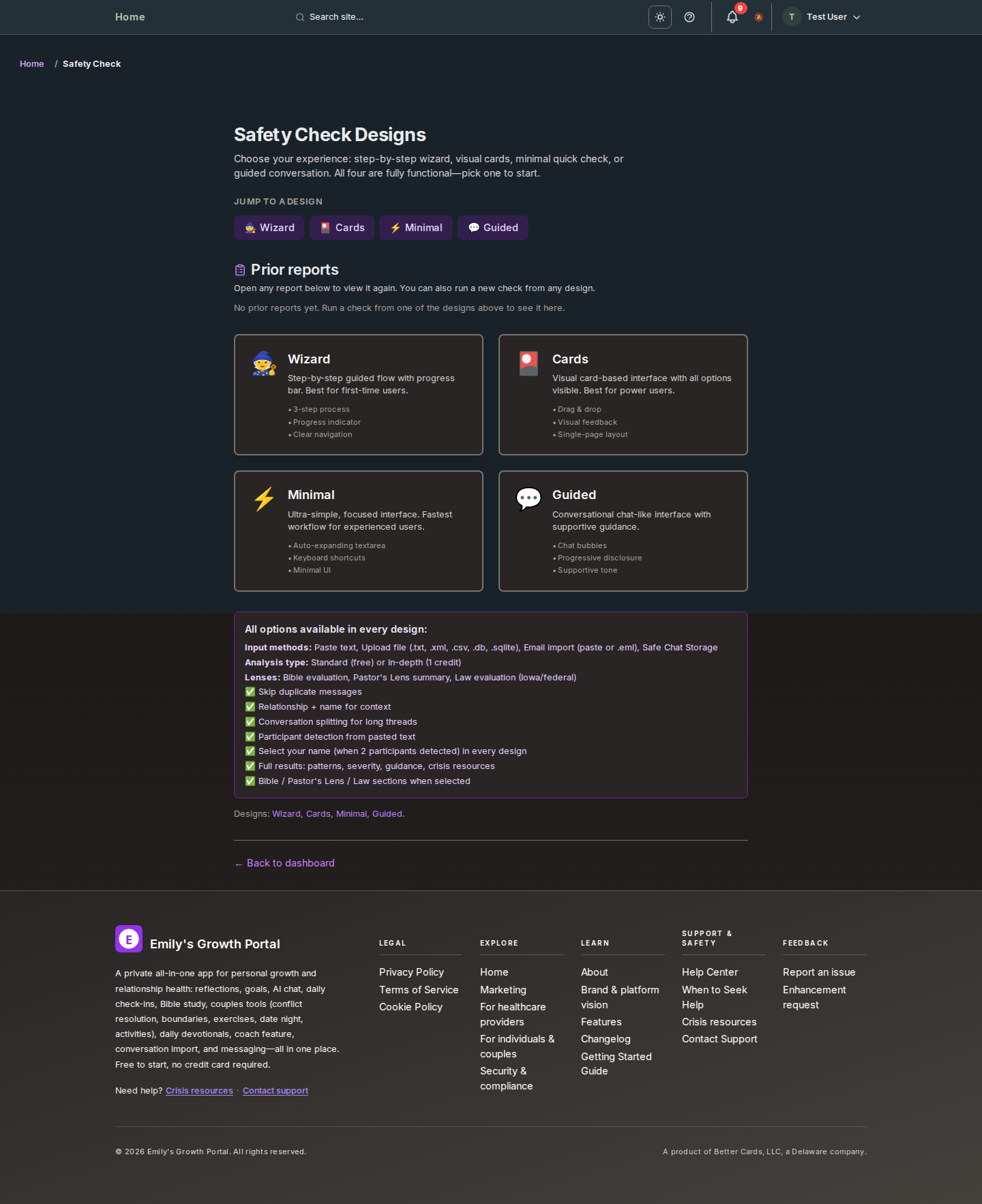
Safety Check is a reflection tool that lets you run a conversation or message through our system to see how it might be experienced by the other person—tone, intensity, and potential triggers. It is not therapy or professional advice; it helps you communicate more clearly and safely.
People in this report: Some results list both speakers with Your side and Other person. Avatars use initials by default; Portrait from thread appears only when that speaker had an inline image in the pasted conversation—it is normal if only one side shows it.
You can save and share the full report with a friend, partner, or therapist. On the main Safety Check page and on designs results (for example the step-by-step wizard from the design selector), you get the same tools: Share with partner, a timed public link (create, copy, and change expiry, max opens, viewer email, and optional view options without revoking the link when one already exists), and Email link—you enter the recipient's email, then confirm via a link we send to your email; the recipient receives only the link (no report content in the email). If you analyze a long conversation in multiple parts (a separate report per part), the share panel applies to whichever part you have selected. PDF, text, and CSV exports include the full report when available (patterns, risk assessment, immediate guidance, coping strategies, notes). Recent checks appear in history; click a row to open the full report. Note: we applied a one-time reset of safety check data; older share links no longer work—run a new check to generate a report.
Timing patterns: After at least three stored checks for the same relationship, the result may include a short summary of when past analyses were run (weekday and month in UTC)—descriptive only, not a prediction of risk. The same summary can appear in text and printable HTML exports when it applies.
Multi-part resume: If a split run stops before all parts finish (for example a timeout), use Resume or Dismiss on the Original flow (Safety Check designs → Original flow, or /dashboard/safety-check/classic) or on the Wizard when you chose a separate report per part—restart from the failed part or an earlier part, or dismiss to clear the saved queue.
Clinical and survivor-centered references: Safety Check uses behavior-focused language and is non-diagnostic. See APA DSM resources and the abuse terms glossary below for definitions used in-product.
These terms are used in Safety Check and longitudinal reporting to describe patterns in communication. They are for context and safety reflection, not diagnosis.
References: APA DSM hub · DSM-5-TR product page · WHO violence facts · SAMHSA trauma-informed guidance.
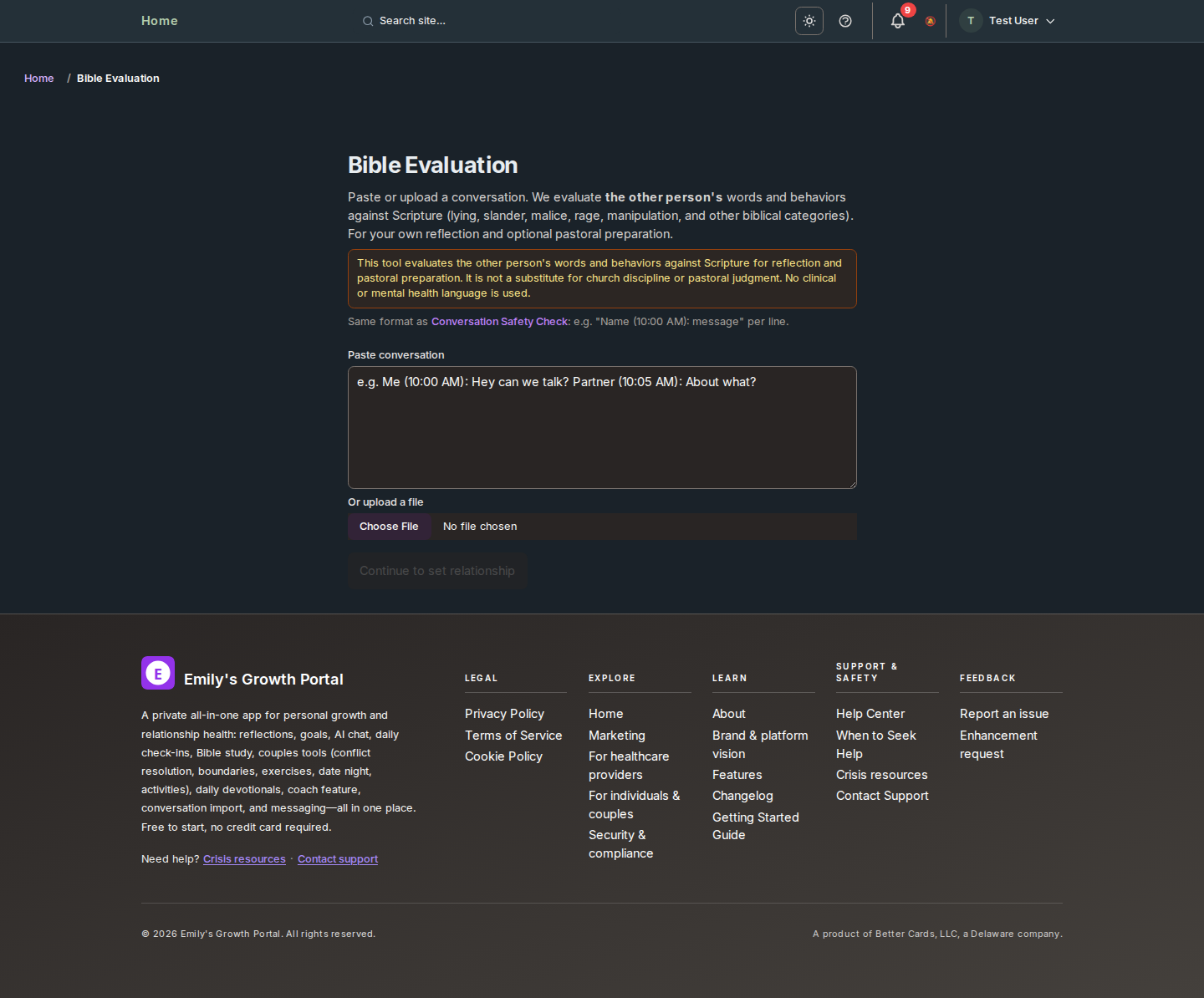
Bible Evaluation lets you paste or upload a conversation and evaluate the other person's words and behaviors against Scripture. Categories include lying, slander, malice, rage, manipulation, partiality, gossip, and others—all tied to specific Bible verses. The report is for reflection and optional pastoral preparation only; it is not a substitute for church discipline or pastoral judgment. No clinical or mental health language is used.
Pastor's Lens frames a situation through biblical pastoral requirements—e.g. guard heart from bias, clarify the charge in biblical terms, both sides heard, evidence and witnesses, Matthew 18 steps, proportional discipline, path to restoration. You open it from a Safety Check result: click "View Pastor's Lens" to see a scorecard of requirements with status and short recommendations. You can then "Generate pastor package" and "Download report" (plain text) to share with a pastor. This is for pastoral preparation only; it does not replace a pastor's judgment or church process.

Law Evaluation flags potential legal concerns under Iowa and federal law (e.g., harassment, cyberstalking) based on the other person's messages. For reflection and possible attorney referral only; not legal advice. Available from a Safety Check result page when you opt in to the lens.
Important: Always consult a qualified attorney licensed in your jurisdiction for legal guidance. The Law Evaluation lens is designed to reduce false positives and help you identify situations worth discussing with a professional—not to provide definitive legal conclusions.
Longitudinal Evaluation is a report that summarizes patterns from your Safety Check history, therapeutic sessions, and escalation alerts over a chosen time window (e.g. 90, 180, or 365 days). It shows whether certain pattern domains (such as emotional volatility, interpersonal manipulation, or grandiosity and deflection) are elevated, partially elevated, or not elevated based on your data. It is for personal reflection and trend awareness only; it is not a clinical diagnosis, professional advice, or a substitute for therapy.
Reports are cached for 24 hours. The report includes a disclaimer that it does not constitute a diagnosis and is not a substitute for professional evaluation.
For official DSM references use APA DSM resources and APPI DSM-5-TR. For term definitions used by these reports, see Abuse terms glossary.

Licensed clinicians use DSM-5-TR as one structured source for formulation and record-keeping. The steps below are a concise workflow reference only—always follow your license, supervision, institutional policy, and the full text of the manual you are licensed to use. This site does not reproduce DSM criteria and does not perform diagnosis.
Many training programs teach a fixed order for ruling out alternatives before naming a primary disorder. Exact criteria live only in your licensed DSM-5-TR text.
Licensed clinicians may use decision trees, cross-cutting symptom measures, the Cultural Formulation Interview, and dimensional severity tools where training and license allow. The APA publishes educational material about these resources.
APA DSM-5-TR educational resources · DSM-5-TR fact sheets (patient/family summaries—not full criteria) · APA DSM hub
The American Psychiatric Association emphasizes that DSM-5-TR is for trained professionals, not for the public to self-label. Misreading criteria can increase distress or delay care for treatable conditions.
Reflect with Emily tools (including Longitudinal Evaluation and Safety Check lenses) summarize patterns in user-provided text or history; they are not a substitute for interview, examination, or manual-based formulation. Maintainer reference: docs/reference/DSM5_TR_ACCESS.md.
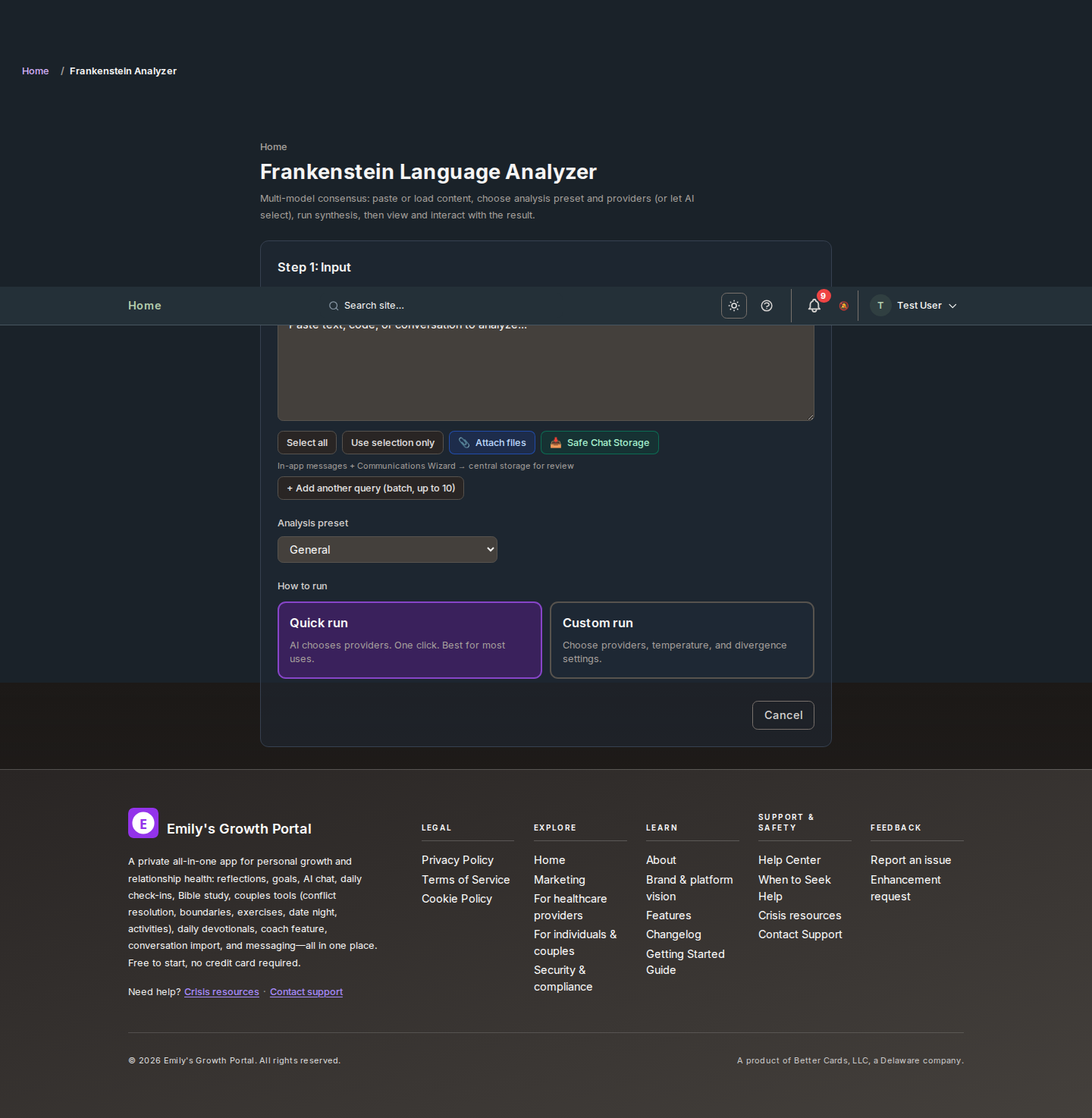
From the dashboard Wizards section you can run guided flows that send your content to the Consensus Wizard (Frankenstein Language Analyzer). One query is sent to multiple AI providers and you get a single synthesized answer with confidence and per-model breakdown. For reflection and analysis only; not clinical or legal advice.
From Dashboard → Communications Wizard you can draft or refine messages with guided AI feedback before sending them. The flow helps you clarify intent, tone, and structure. You can optionally send drafts to the Consensus Wizard (multi-model analysis) for deeper reflection.
Safe Chat Storage gathers communications from In-app messages, Communications Wizard, and Universal AI Chat. You can filter by thread, save content into slots for different programs, and send to Multi-model (Frankenstein) or open in the analyzer with one click.

Devotion Connect offers daily devotionals with points and badges. Grow your faith with short, focused content alongside your personal growth.
Each devotional includes Reflection Questions. Use "Answer with Wizard" to complete them. Your answers are saved automatically when you finish the wizard.
When you return to Devotion Connect, your saved reflection appears in the section "Your reflection (saved)" below the devotional. You can edit by opening the wizard again. Doing a devotional "Do with a friend" saves your response for that friend to see and shows theirs in a separate section.

Prayer Wizard (Dashboard → Prayer Wizard) helps you structure prayer requests and reflections with a guided flow. You can optionally use multi-model consensus for analysis. Prayer Requests (Dashboard → Prayer Requests) lets you create and manage prayer requests and share them with friends; friends can mark when they have prayed.

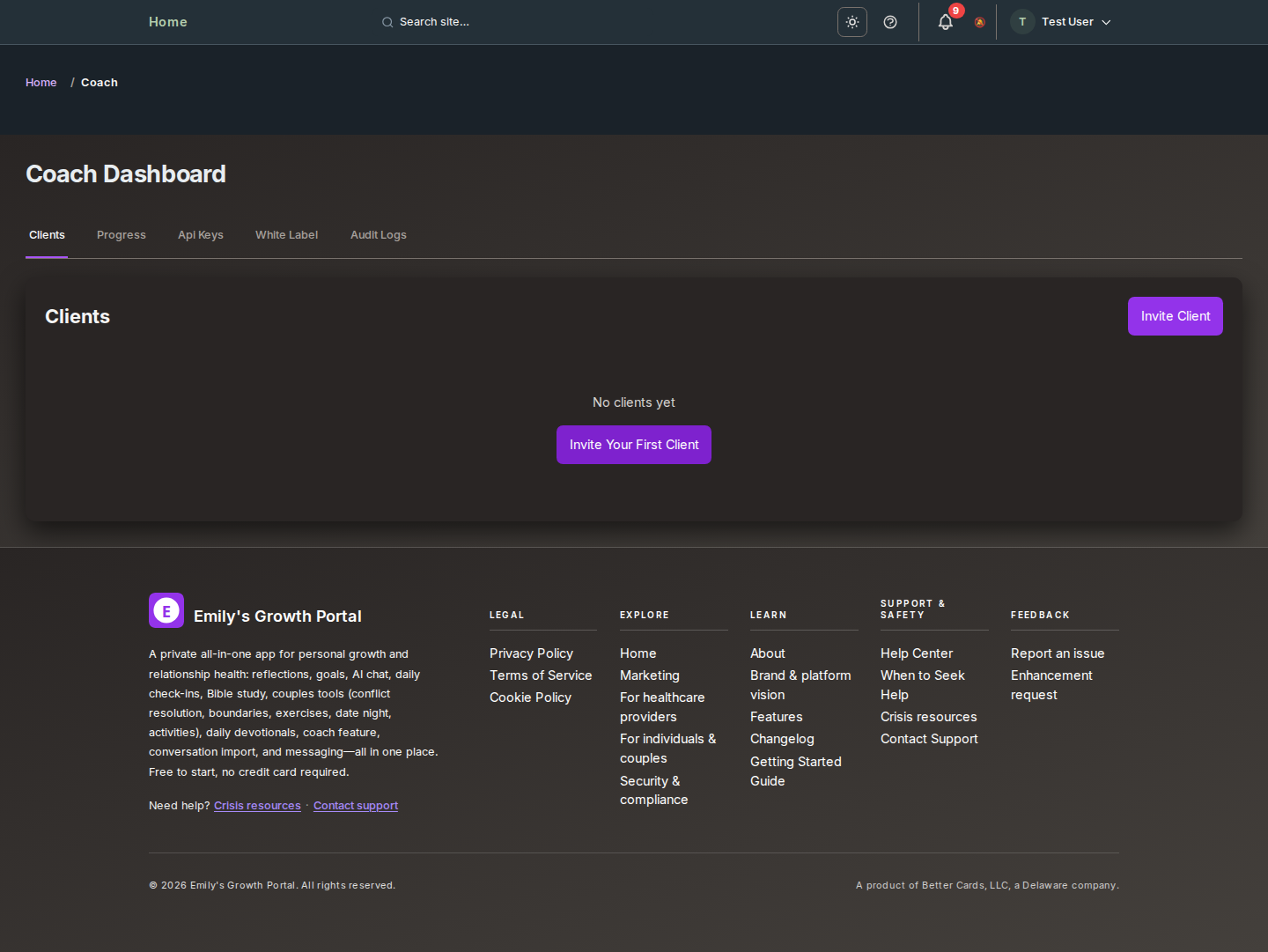
The Coach program provides guided growth with roleplay, reflection prompts, and feedback. Practice communication and scenarios in a safe space.
For practice and coach-tier providers when video is configured: start HIPAA-oriented sessions from Practice → Telehealth or from today’s schedule. Clients join from the portal after you admit them. Join URLs use a secure token (?t=…) and expire after about an hour—start a new session if you see "not allowed to join." Use Copy patient join link only for the client; keep your dashboard-open link for host features such as cloud recording when enabled under Practice → Configuration. Not for emergencies—use crisis resources when needed.
Hearing each other on a video call:The in-app room plays your care team's voice through dedicated audio playback (video tiles stay muted to reduce echo). Allow mic/camera for the site, interact with the page if prompted, and check device volume if one side sees video but not sound.
Connect with friends in your growth community through direct messages. View your friends list, start conversations, and see when friends are online or when they were last active.
Use the friends list to add friends (by user ID or email when the feature is enabled). To remove a friend, open the friends list, find the person, and use the remove (X) button. Removing a friend does not delete past messages but stops new direct messages.

From Dashboard → Roleplay you can create relationship profiles and run roleplay sessions with AI feedback. Practice communication and scenarios in a safe space; use reflection prompts and get structured feedback. This is part of the Coach and growth toolkit—not therapy.

In-app: When enabled for your account, the bell in the dashboard top bar (near help) lists recent alerts.
Email: Session summaries may be sent after sessions. Password reset and security mail are sent when needed. On Dashboard → Preferences, you can tune categories such as Devotion Connect (daily devotional email), reminders, and—if you use practice features—practice-related email types (appointments, billing, intake, and similar). Security emails (for example password reset and account verification) stay on when required; they are not turned off by those preference toggles.

View your session history from Dashboard → Sessions. See how much time you have invested in reflection, goals, check-ins, and chat. Track accomplishments and activity over time. Session summaries can be sent by email when enabled.

There is one place for all conversation imports: the Import page. Use it for SMS, iMessage, WhatsApp, Signal, Telegram, Messenger, Slack, Discord, and any other chat app that can export to CSV, JSON, XML, TXT, or SQLite.
On the Import page you can: upload and save conversations, analyze patterns, get goal suggestions, merge multiple imports into one, create an AI chat persona (with or without saving), and use token-reduction for long threads when sending to AI Chat. Full instructions—including how to export from Android and iPhone, supported file formats, and privacy details—are all on that page.
For detailed iPhone export steps (iMazing, iExplorer, iCloud, and more), see the guide linked from the Import page ("View iPhone export guide").

Separate from the website, an experimental Android shell in this repository can call the same member account with a Bearer JWT (paste from the portal after you sign in). It can register the handset, sync selected thread lines to the portal for context, and request schema-informed SMS drafts using the same psychoeducation guardrails as the schema toolkit. Nothing is sent automatically: you review the draft on the device and send with SmsManager only if you choose to.
Google Playheavily restricts SMS permissions; shipping a consumer app that reads the full inbox often requires becoming the user's default SMS app or a very narrow, policy-reviewed scope. Treat this companion as a developer / internal testing path until policy and legal review are complete.
API routes (authenticated member only): POST /api/mobile/sms/device, /sync, /suggest, /telemetry. Maintainer reference: docs/features/MOBILE_DEVICE_SMS_ADDON.md in the product repository.
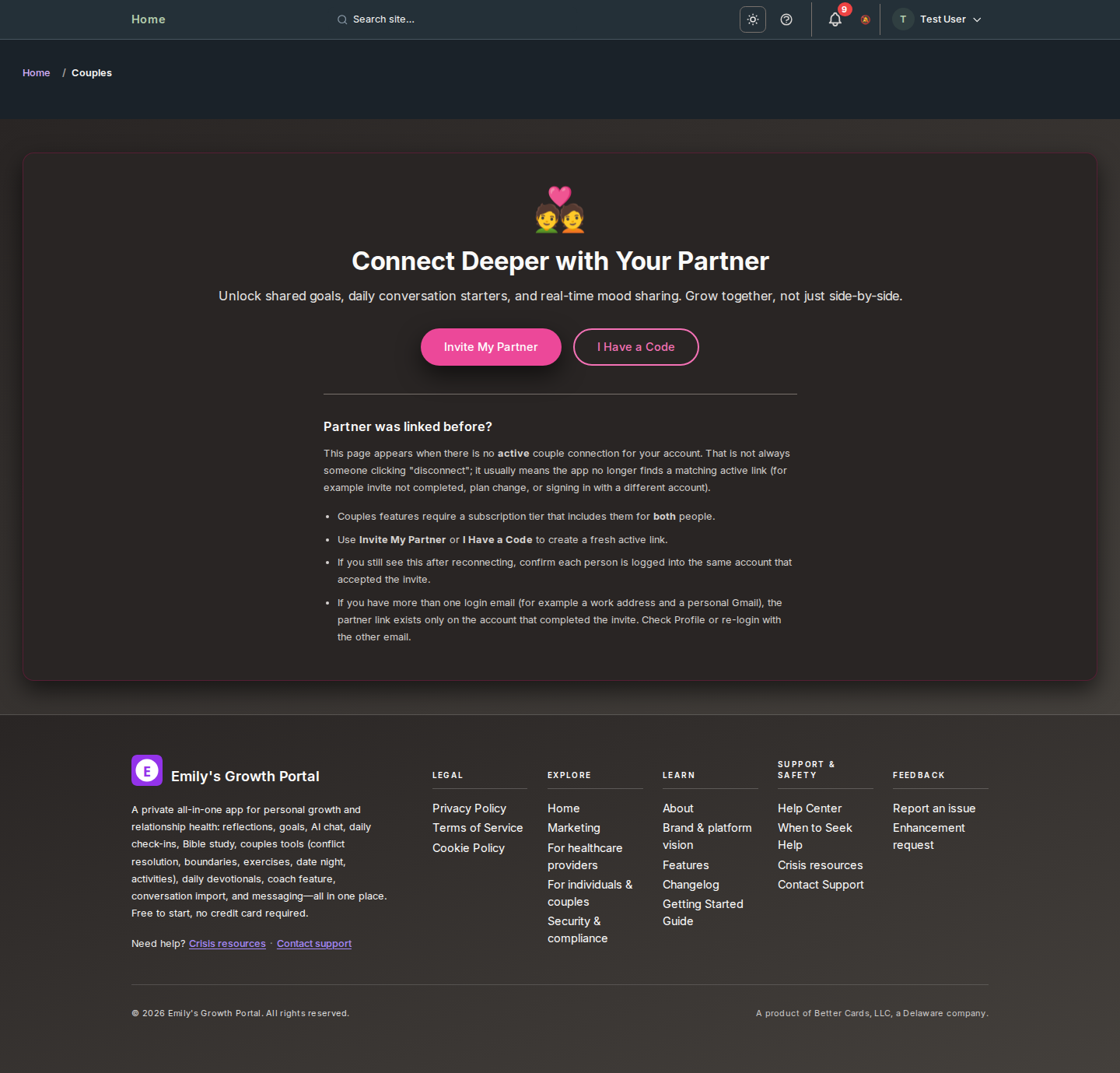
From Dashboard → Couples → Fight Room you can run a structured, AI-moderated conversation with your partner. Save and resume sessions, get human-readable session labels, and use dark mode. Works best when both partners are connected in Couples Connect.
On Couples or Couples → Events, schedule shared events and date nights (date, time, location, recurring options, all-day when used). Use Edit on a row to update an event—changes apply for both partners after you save.
When an administrator turns on partner activity summary (Admin → Settings → Partner visibility), you may see a Partner activity card on your main dashboard. It lists tools your connected partner has used recently (within about the last 30 days): only the name of the tool and how long ago they last used it—not the content of check-ins, chats, or messages.
Tool names in the summary link to the same area of the app so you can jump there quickly. Open More detail (exact times) on the card for local date and time of each last use. The list updates when you return to the tab or refresh; it is not shared with anyone outside your account.
If the card is missing, your admin may have disabled this feature, you may not have a connected partner yet, or your partner has no qualifying activity in the window above.
From Dashboard → Kids Connect, families can use parent–child activities, co-parenting guidance, biblical parenting resources, and Family Communication (structured meeting prompts, timers, and copy-friendly scripts). These tools support connection and reflection at home—they are educational and relational supports, not therapy or diagnosis.
If you're in crisis or need professional help, we provide 24/7 resources: National Suicide Prevention Lifeline (988), Crisis Text Line (text HOME to 741741), and when to seek professional care. Emily's Growth Portal is not therapy or medical advice—please reach out when you need professional care.
Authorized administrators only. Sign in as an administrator and open /dashboard/admin. That page is the admin hub: grouped cards link to each tool (operations, users, practice compliance, support, marketing, AI, API keys, and more).
Common routes (prefix /dashboard/admin/)
Also from the hub: Operations & backups — operations; Deployments — deployments; Practice compliance (HIPAA hub under the practice dashboard); Email marketing — email-marketing; Send documents — send-documents; API keys — api-keys; Stripe setup — stripe-setup; Token limits — token-limits; and other cards as your deployment exposes them.
Markdown mirror: docs/HELP.md (#admin-dashboard).
Location: /dashboard/admin/analytics/performance
Features
Available dashboards
Benefits
We store only what you create: account info, reflections, goals, check-ins, chat history, and (if you use them) couples and Bible data. We use it to run the product and personalize your experience. We do not sell your data. Retention follows our Privacy Policy.
Export: From your account settings you can export all your data (JSON). Delete: You can permanently delete your account and all associated data at any time. Your data is yours.

Emily's Growth Portal uses AI to suggest prompts, summarize reflections, and provide personalized growth guidance. Your answers and conversations are private and are not used to train public AI models. We use industry-standard security and only use your data to improve your experience within the product. You can export or delete your data at any time from your account settings.
Is my data used to train AI? No. Your reflections, chat messages, and other content are not used to train public or third-party AI models. Your data is used only to provide you with personalized guidance within the product.
Models and providers: Different features may use different models or vendors behind the scenes; what you see can depend on your plan. This remains a growth and reflection product—not clinical care. Export and deletion options are described above and under Your Data.
Emily's Growth Portal is built on proven practices from research on relationships with God, your partner, and yourself. We integrate evidence from randomized controlled trials, meta-analyses, and decades of couple and spiritual growth research so you get one of the most evidence-grounded growth systems available.
Our goal is to be the very best evidence-based system for integrated growth in faith, relationship, and self—backed by research, not just opinion.
If you leave the dashboard inactive for a while (no mouse, keyboard, or touch), a "Session paused" modal may appear. This is for your security so your session is not left open on a shared device.
If you do nothing, you will be logged out automatically after 60 seconds. The number of minutes of inactivity before the modal appears is set by the site (typically 30 minutes). On mobile, if you are on the Messages section, the idle timeout is not applied so you can read or reply without being logged out.
After a period of no activity, the site shows this modal for security. Click "Extend session" to stay logged in or "Log out" to sign out. See Session paused (idle timeout) for details.
If you need additional help, you can:
For complete documentation, see our Getting Started Guide or contact support through your account settings.